Split a statement pack into named PDFs
Splitting the pages is only half the job. Each statement also needs a filename someone can find again. This walkthrough uses the thirteen-page sample included in the app: eight statements with different page counts, which the app groups without being told how.
Best fit: searchable PDFs from a consistent reporting layout, where you can select the reference text with your mouse. Scanned-only PDFs, interactive forms and signed documents are outside this version's scope.
Open the pack
Open the app and choose Use the sample bundle. The workspace fills the window, so nothing else competes for attention while you work.
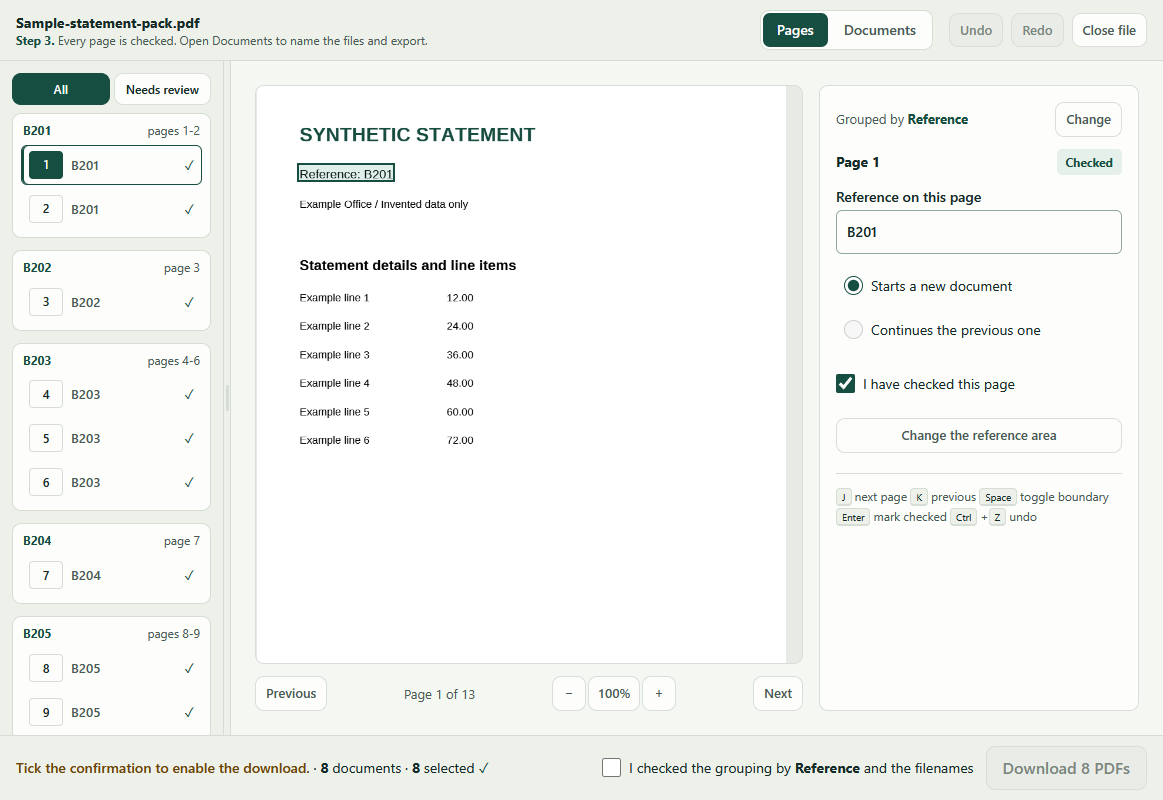
You do not have to tell it where the reference is. It reads every page, finds the field that identifies each document, and groups them. The panel beside the page then says which field it used: Grouped by Reference.
If that is the wrong field, choose Change beside it. Each option is listed with the number of documents it would produce, so you can choose by the result. You can also click the reference on the page yourself. The line under the filename at the top of the window says which step you are on throughout.
Review the groups
The sample becomes eight proposed documents: B201 holds source pages 1–2, B202 holds page 3, and B203 holds pages 4–6. Nothing has been written yet.
The page list on the left marks every document start, and any page needing attention carries an exclamation mark. Step through pages with J and K, or click one. Drag the edge of the list if the references are too long to read.
Name the documents and export
Open the Documents tab. Every filename is listed straight away, with the Filenames panel beside them rather than above them, so nothing has to be scrolled past to see the names.
The panel reads the names it produced and offers what it can see as buttons: remove a label they all start with, remove an ending they all share, replace spaces, change the capitals. Each button says how many filenames it would change. Point at one and every document in the list shows what would happen to its own name, with the characters that would disappear struck through, so Reference_ B201.pdf visibly becomes B201.pdf before you commit to it. Click to apply; one Ctrl+Z undoes the whole batch.
Nothing there needs typing and nothing depends on capitals. Add to the start of every name at the top of the panel takes effect as you type and goes away again when you clear it. Edit by hand underneath holds find and replace, the capitals setting and a pattern such as Statement {n} of {total}, for names the suggestions do not cover.
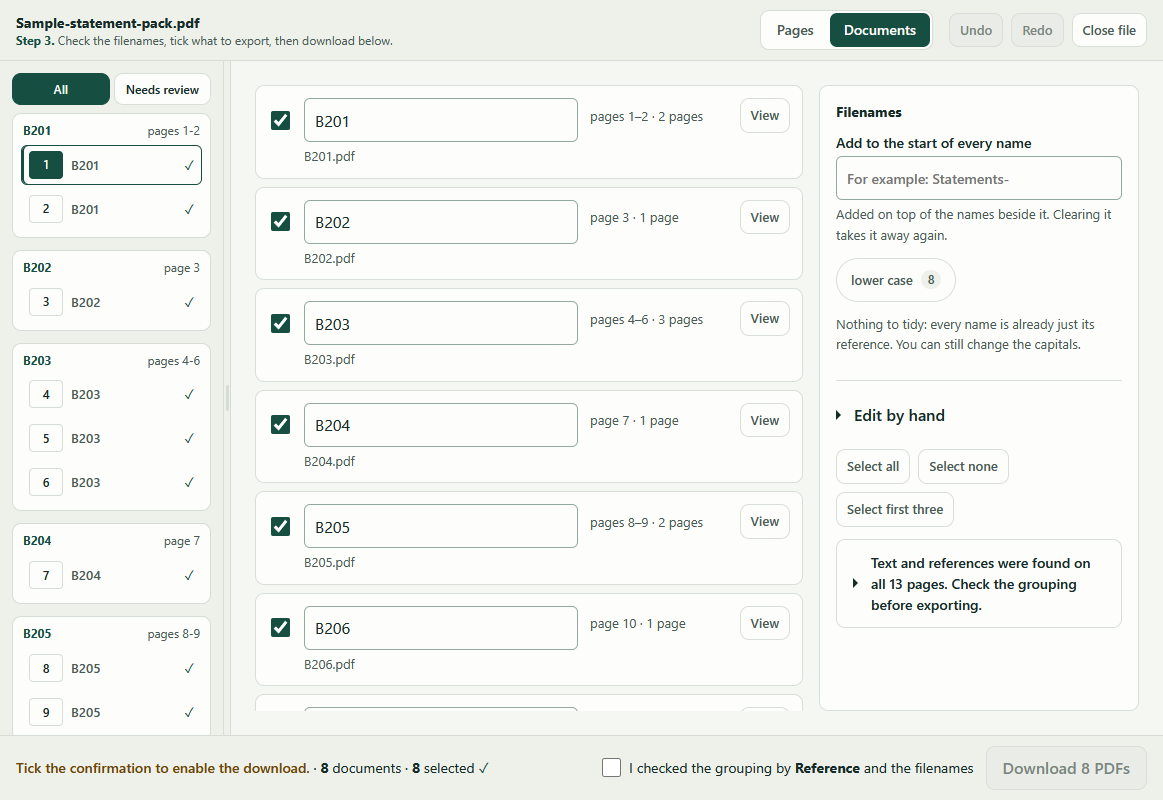
Choose the documents you want and tick the confirmation at the bottom of the window. Because the app chose the grouping field for you, the confirmation names it: I checked the grouping by Reference and the filenames. If the download button is unavailable, the bar states the reason before the summary.
Extract the ZIP: the documents folder holds the PDFs, and page-manifest.csv maps every source page to its document. Documents you did not select still appear in the manifest, marked as not exported.
Save the setup for next month
Open Reuse this setup next time and save a template. It stores the field area and naming settings, never your pages. Load it for the next batch from the same system.
Always review the new output. A changed layout can need a new reference area.
What the two editions do
The free demo previews the whole batch and exports any three documents at a time. The £29 full v1 download exports the whole selection in one go and works offline. Neither edition validates statement figures; it organises pages, and you check the contents.
Next
Try the same four steps on one of your own bundles. It stays on your device.